
Onboarding Preparation Guide
Welcome to Marketer!
Please follow this guide to ensure a smooth and seamless onboarding process.
Table of Contents:
- Shopify: Sales channel setup for Meta and Google
- Meta: Verify setup
- Google: Verify setup
- Connect to Marketer
Shopify Admin
Prepare login credentials for a user with full admin access to your Shopify store. The Shopify user completing the onboarding flow will be permanently connected to Metric.
In Shopify, you must have installed and properly set up the following sales channels:
- The Facebook & Instagram app
- The Google & YouTube app
Verify Setup & Admin Access
Meta
First, go to Meta Business Settings
- Open Meta Business Settings and sign in to your Meta business account/portfolio.
Step 1: Verify your Business Portfolio Access
- Navigate to Users > People and locate your user.
- Verify that your business portfolio access is set to Full control Everything.
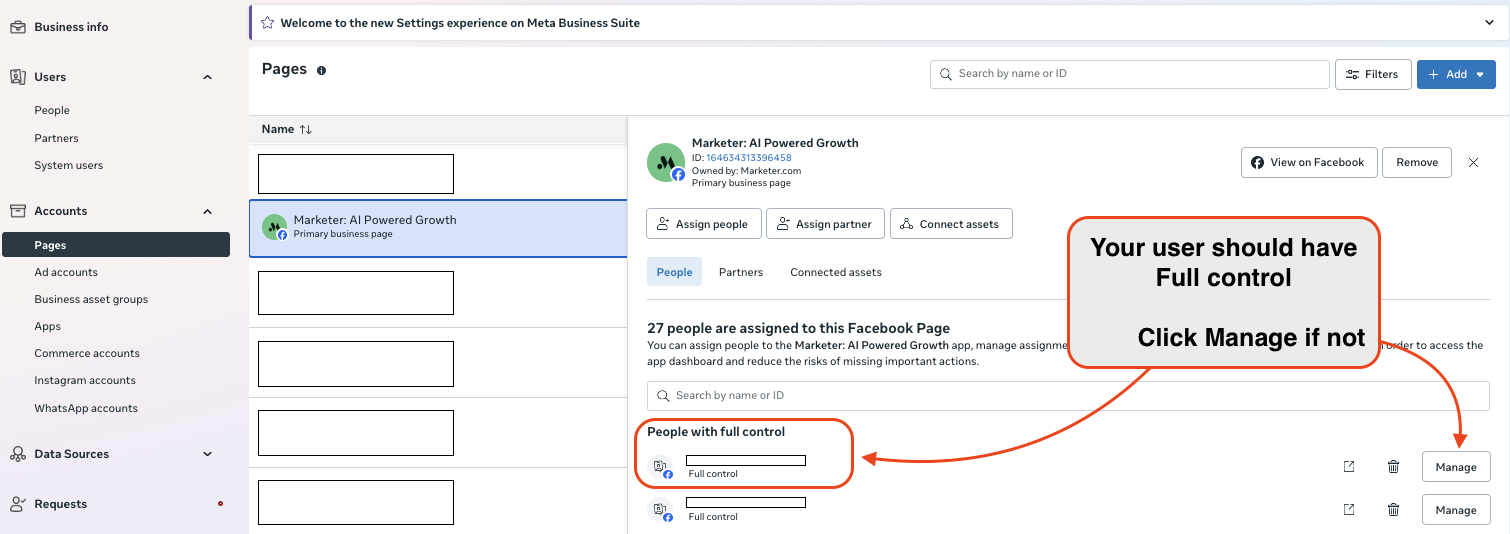
Step 2: Verify the Facebook Page
- Navigate to Accounts > Pages.
- Select the page and locate your user. Verify that your user has Full control.
- Check that the page is connected to your Instagram account: Click Connected Assets. If the Instagram account does't appear, click Connect assets > Select and login to your Instagram account to link it.
Step 3: Verify the Dataset or Pixel
- Navigate to Data Sources > Datasets & pixels
- Select the dataset and locate your user. Verify that your user has Full control.
You should make sure that you're using the correct dataset. Check out this guide if you're unsure which dataset is connected to your Shopify store.
Step 4: Verify Catalog
- Navigate to Data Sources > Catalogs.
- Select the dataset and locate your user. Verify that your user has Full control.
- You should make sure that you're using the correct catalog. Check out this guide if you're unsure which catalog is connected to your Shopify store.
Step 5: Business Verification
- Navigate to Business info.
- Check Business verification status.
If it says Unverified, please follow this guide on how to verify your Meta Business.


Step 1: Navigate to the Google App in Shopify:
- Log in to your Shopify admin.
- Go to Settings > Apps and sales channels.
- Select the Google & YouTube channel.
- Click on the Settings tab within the app.
Tip: You can also navigate to the Google & Youtube via the search bar at the top by searching for "google & youtube".
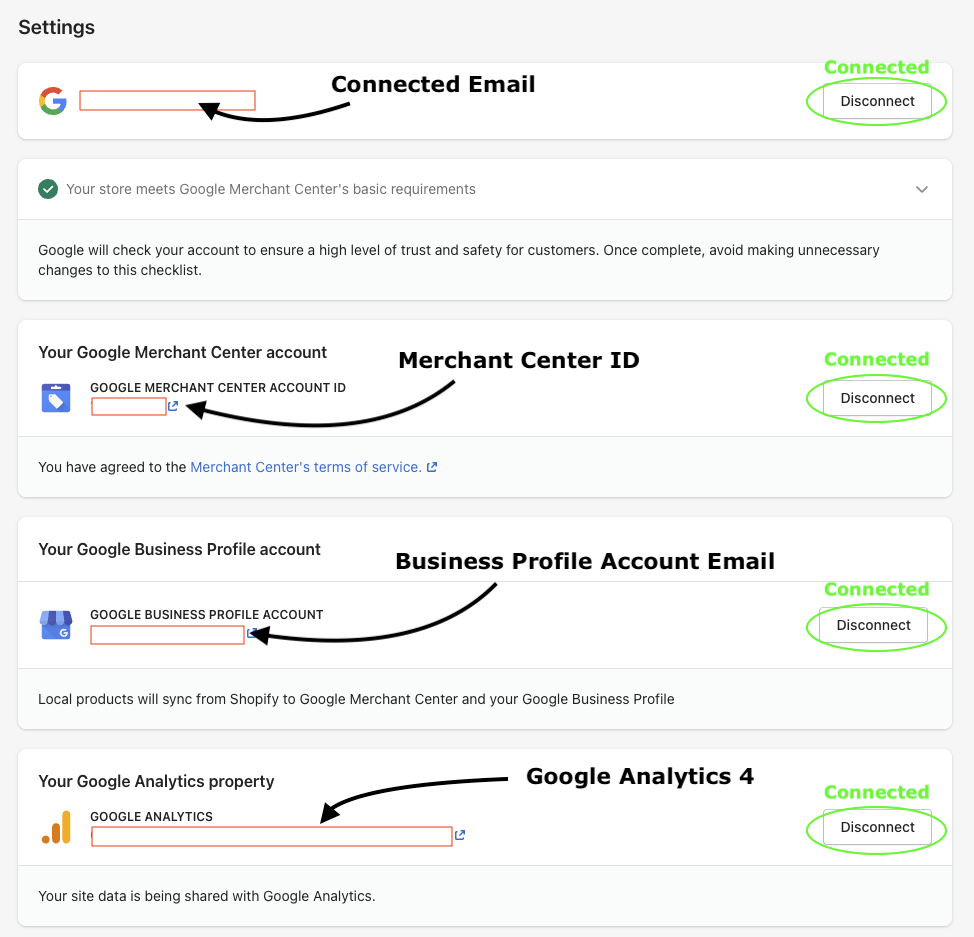
Step 2: Verify Connections
- Click on the Settings tab within the Google & YouTube app in Shopify.
- Make sure that the following accounts are connected:
- Google Email
- Google Merchant Center account
- Google Business Profile account
- Google Analytics property
- Google tag
- You can compare with the image below, which shows a fully connected setup:

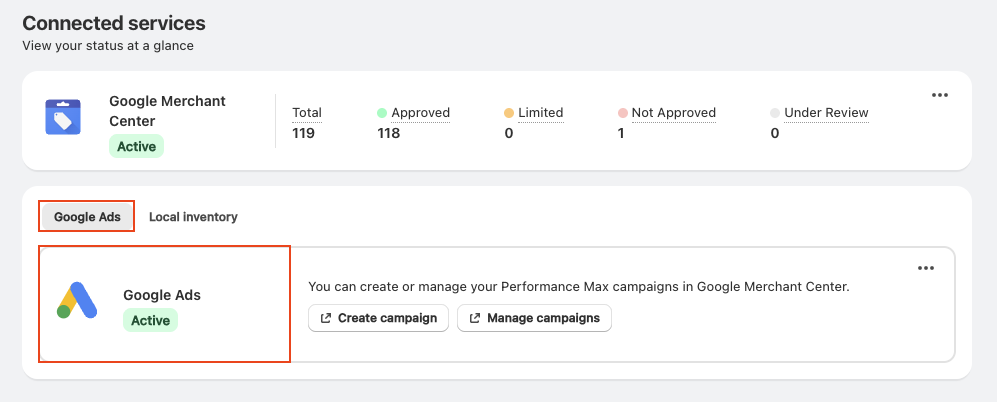
Verify connection to Google Ads
Navigate back to the Overview tab within the Google & YouTube app. Locate the Google Ads section and ensure that is says Active.
Connect to Marketer
Sign in to Marketer's web app and start the onboarding flow.
In order for your CSM to be able to access your accounts, we also need you to share direct access. Please follow the guides below: